
You can make a PNGTuber without drawing anything. Design a character with an AI image tool, make two versions (mouth closed and mouth open), remove the backgrounds, then load both images into a free PNGTuber app like veadotube mini and add it to OBS. The app swaps the images when your microphone picks up your voice. The whole setup takes about an hour, and most of that is choosing the character.
What you need
- A character idea. A few words on species or type, hair, colors, outfit and personality.
- An AI image tool. You will make three to six images. In Ziztu each image costs 3 credits with Meta Muse Image or 7 with Seedream 5 Flash, and new accounts get 40 free credits.
- A background remover. Any free one works, or a photo editor such as GIMP or Photopea.
- A PNGTuber app. veadotube mini is a popular free choice.
- OBS Studio (free) or another streaming app.
Step 1: Design a character that reads at small size
Your avatar sits in a corner of the screen, often only 300 to 400 pixels tall. Design for that.
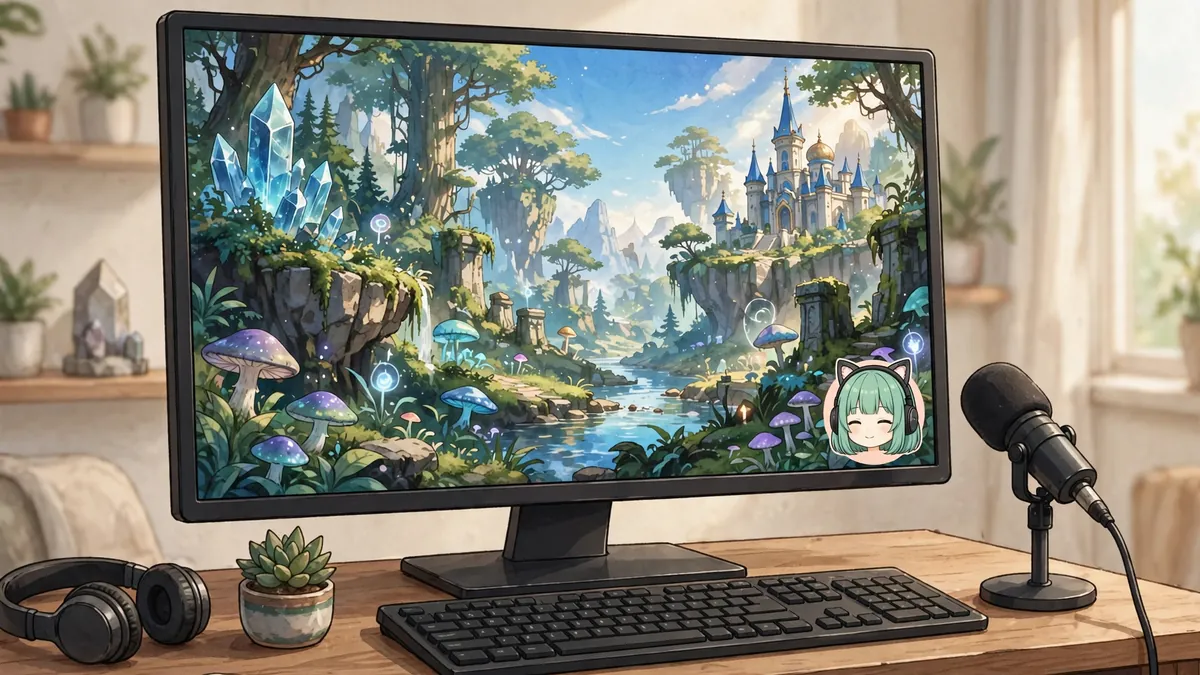
- A big, clear face. Large eyes and a visible mouth matter more than outfit details.
- Strong colors. Two or three main colors and a clean outline.
- Chest up framing. Most PNGTubers show the head and shoulders. Full body figures become tiny.
- A plain background. Ask for "plain white background" so removal is easy.
A prompt you can adapt: "Chest up portrait of a cheerful anime streamer with short teal hair and cat ears, oversized yellow hoodie, big expressive eyes, mouth closed, clean bold outline, flat cel shading, facing slightly to the side, plain white background."
If you want help with the concept first, the OC Maker has guided options for species, style and personality. For an animal character, see how to make a fursona.
Step 2: Make the talking image
The talking image must be the same character in the same pose, with only the mouth changed. If you generate it from scratch, the hair and pose will shift and the avatar will jump every time you speak.
The reliable way is an edit, not a new image. Generate a new image with your first image attached as a reference, and ask for one change: "The same character, same pose and framing, mouth open as if talking, everything else unchanged." In Ziztu, attach the first image when you generate and name it in the prompt as Image 1.
Compare the two images side by side. If anything besides the mouth moved, try again or fix it in a photo editor by copying the mouth area onto the idle image.
Step 3: Add blinks and expressions (optional)
Two images are enough to start. Popular extras:
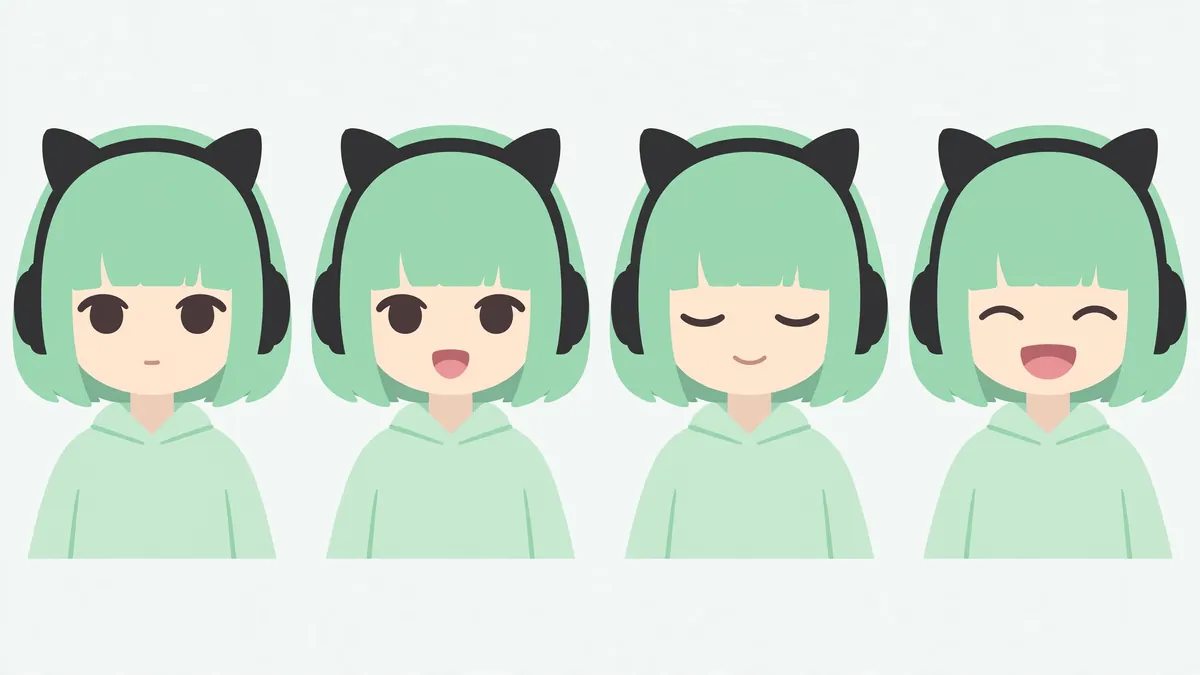
- Blink versions of both idle and talking images, so the character blinks.
- Expressions for reactions: surprised, laughing, annoyed. Most apps let you switch to these with a hotkey.
Make each one the same way: an edit of the idle image with one change.
Step 4: Remove the backgrounds
Every image needs a transparent background, saved as PNG.
- Run each image through the same background remover.
- Check the edges at 100 percent zoom. Hair and ears are where removers slip.
- Make sure every image has exactly the same canvas size, around 1000 pixels square is plenty.
- Line the images up in a photo editor if the character shifted at all.
Step 5: Set up the PNGTuber app
In veadotube mini (other apps work the same way):
- Create a new avatar and add a state for each image: idle, talking, and blink versions if you made them.
- Pick your microphone and set the threshold. Speak normally and raise the threshold until background noise no longer triggers the talking image.
- Turn on the transparent background setting so OBS can see through it.
- Save the avatar.
Step 6: Add it to OBS
veadotube's own help page recommends this setup:
- In OBS, add a new source and choose Game Capture, then select the veadotube window.
- In the source properties, tick Allow Transparency.
- On Windows, if transparency does not work, use a Spout2 capture source instead, as the veadotube guide describes.
- Resize the avatar and place it in a corner of your scene.
Do a test recording before you go live. Check that the mouth reacts to your voice and not to your keyboard.
Tips that make a PNGTuber look polished
- Add a small bounce. Most apps can move the avatar up slightly while you talk. It makes the character feel alive.
- Keep the lighting the same in every image, or the colors flicker when the image swaps.
- Match your emotes. Use the same character for your channel emotes so your brand is consistent. Our guide on making Twitch emotes shows how, and the free emote resizer exports every size from one image.
- Make a short intro clip. Animate your character for a starting soon screen. In Ziztu Studio, use the idle image as the first frame of a shot. A 5 second clip costs 31 credits at 480p.
Honest limitations
- AI images can change small details between versions. The edit approach fixes most of it, but check every image closely.
- A PNGTuber does not move like a VTuber. If you want head tracking and real expressions, you need a rigged Live2D or 3D model, which takes far more work.
- Background removal is rarely perfect on hair. Budget ten minutes of cleanup.
- Check the terms of the image tool you use if you plan to monetize your channel.
When your avatar is ready, browse all the Ziztu tools for stream extras like intro clips and music.