
You can make a music video from any finished song with AI in an afternoon. Upload the track to a video project, split the song into sections, plan one shot per section, generate a short clip for each shot and cut the clips on the beat. In Ziztu a 5 second clip costs 31 credits at 480p or 50 at 768p, so a 30 second test at 768p is about 300 credits.
This guide walks through the whole process: what to prepare, how to plan shots that match the music, how to keep a character consistent, and where AI still falls short.
What you need before you start
- The finished song as MP3, WAV or M4A. It can come from Suno, Udio, a band recording or your own production.
- The rights to use it. If an AI music tool made the track, check its terms for your plan before you post. Some plans only allow personal use.
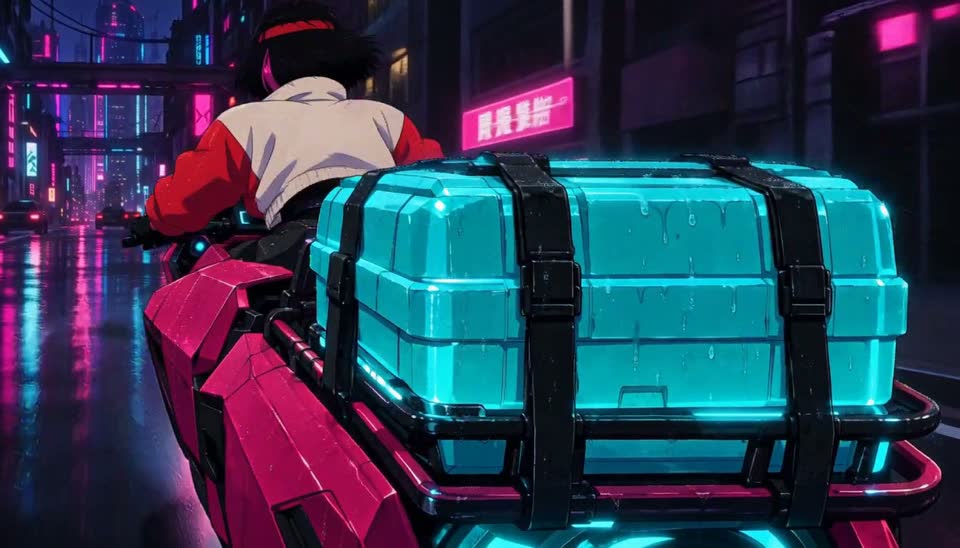
- A one line idea for the video. For example: "a courier races across a rainy neon city to deliver one last package before midnight."
- A platform in mind. Pick 16:9 for YouTube, 9:16 for TikTok, Reels and Shorts, or 1:1 for square posts. You choose the frame when you create the project, so decide first.
How an AI music video comes together
An AI video model makes short clips: usually 5 to 15 seconds each. A music video is many of those clips, cut in time with the song. So the work splits into three jobs.
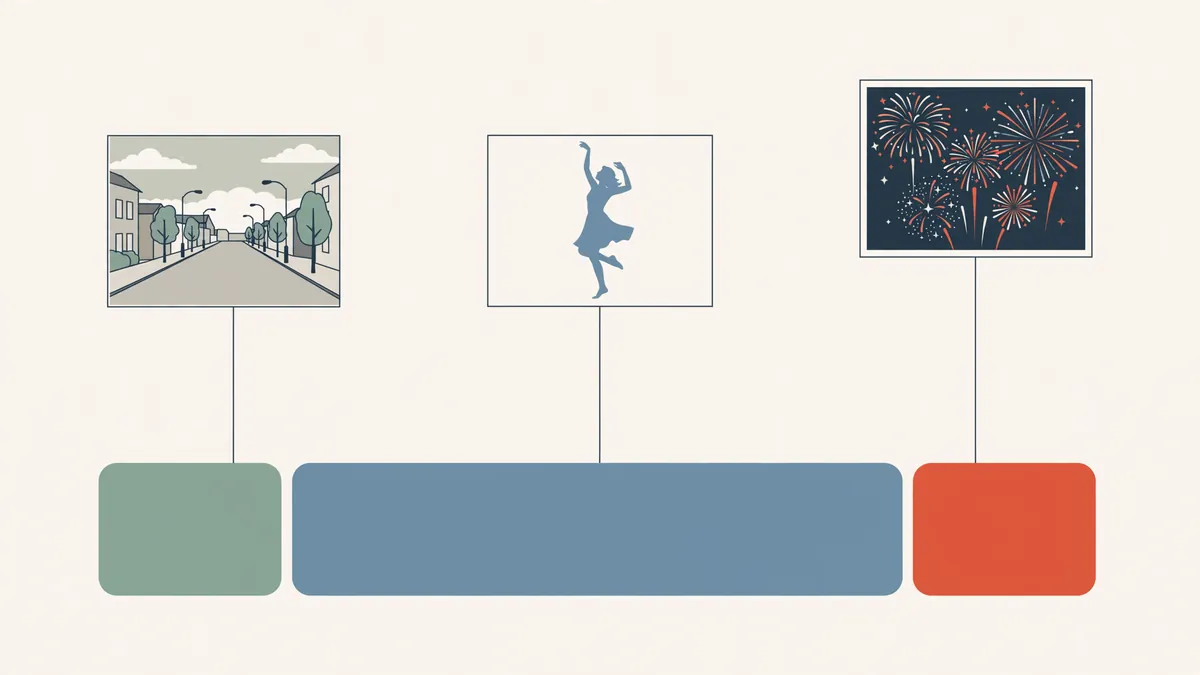
- Planning. Decide what each section of the song shows. The intro sets the place, the verse follows the character, the chorus is the big moment.
- Generating. Make a first frame for each shot, then turn it into a moving clip with a video model.
- Editing. Lay the clips on the timeline over the song, trim them and cut on the beat.
Tools that promise "one click" music videos usually hide the first and third jobs. The results look random because nobody planned the shots. Doing the planning yourself takes ten minutes and makes the biggest difference.
Step by step: from song to finished video in Ziztu
- Create a project. Open Ziztu Studio, start a new project, pick a style preset and the frame: 16:9, 9:16 or 1:1.
- Upload your song. On the music lane choose Add music, then Upload audio. Ziztu reads the file, finds the tempo and marks every beat and bar on the timeline. You see the BPM next to the track.
- Ask the Director for a plan. Describe your idea in the Director chat, for example "a 30 second video for the chorus of this song: a courier racing across a neon city at night." The Director suggests characters, places and a list of shots. A Director message costs a few credits; applying its plan costs nothing.
- Lock your characters. In Cast, generate a character sheet for each person who appears. You can describe them in words or upload a reference picture. The sheet is what keeps the face and outfit the same from shot to shot.
- Make the first frames. Each shot starts from a still frame. Generate it, or upload your own picture. Pick the frame you like before you spend credits on motion.
- Generate the clips. Turn each first frame into video. Start at 480p (31 credits per 5 seconds on H3 Max Turbo) while you test, then regenerate the keepers at 768p (50 credits) or 1080p (99 credits).
- Cut on the beat. Drag the end of each clip on the timeline. The cut snaps to the nearest beat marker, so it lands on the music.
- Add lyrics if you want them. Type captions on the text lane, or import an SRT file.
- Export. Render one MP4 at source size, 720p or 1080p. Captions are burned in.
How to plan shots that match the music
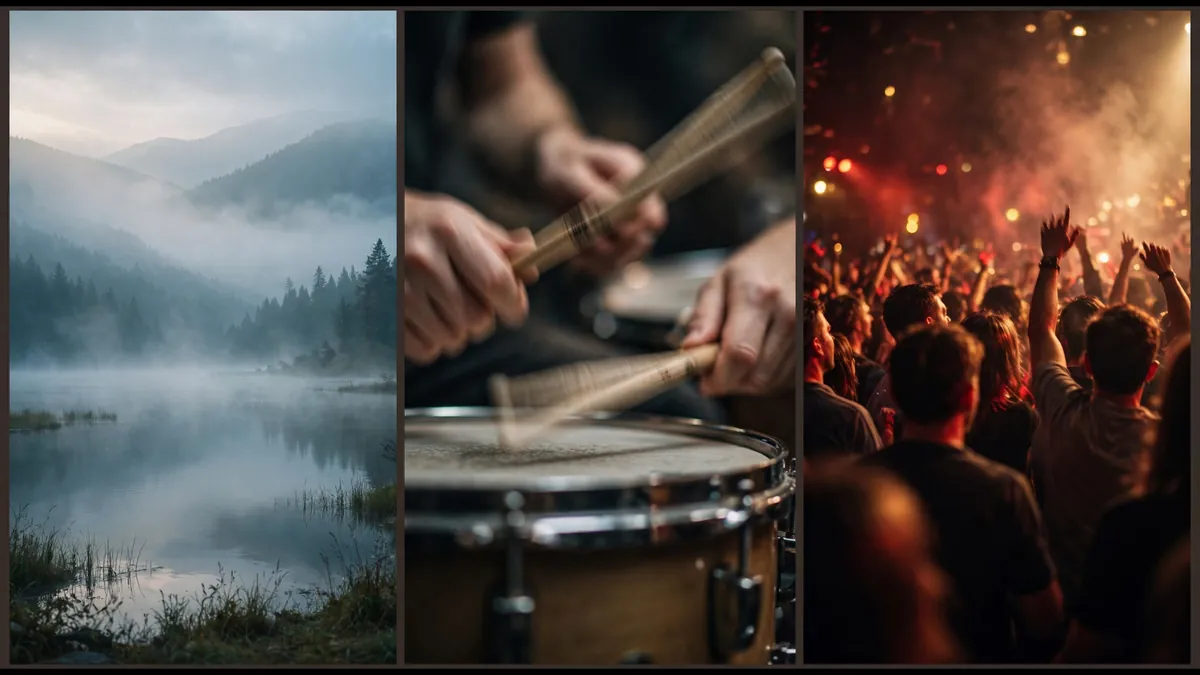
Good music videos follow the song's energy. Before you generate anything, listen once and write down the sections with their times. Then give each section a job.
| Song section | Shot idea | Why it works |
|---|---|---|
| Intro | A wide shot of the place, slow push in | Sets the world before the voice starts |
| Verse | Medium shots that follow the character | The story moves forward with the lyrics |
| Pre-chorus | Closer shots, faster cuts | Builds tension before the drop |
| Chorus | The big image: a jump, a reveal, a crowd | The moment people remember and share |
| Bridge | Something different: a memory, a new place | Gives the eye a rest before the last chorus |
Two more rules help a lot.
- Cut on bar starts for slow songs and on beats for fast ones. Cutting on every beat of a slow ballad feels frantic.
- Change the shot size on every cut. Wide, then close, then medium. Two wide shots in a row look like a mistake.
Prompt tips for anime, cinematic and retro looks
Each shot needs a clear picture and a clear motion. Write the place, the subject, the light and one camera move.
- Anime: "A girl in a yellow raincoat runs across a rooftop at dusk, city lights below, wind in her hair, slow tracking shot." Name the light and the weather. They carry the mood more than the word "anime".
- Cinematic: "Close-up of a singer under a single warm spotlight, dust in the air, shallow depth of field, slow push in."
- Retro 80s: "A courier on a motorbike under pink and teal neon, wet street, film grain, cel shading."
Keep one camera move per shot. Asking for a pan, a zoom and an orbit in five seconds gives you mush.
What it costs
Every number below comes from our live pricing table, the same data as the AI video price index. It assumes H3 Max Turbo clips of 5 seconds each, six clips per 30 seconds.
| Video length | Clips | 480p credits | 768p credits |
|---|---|---|---|
| 30 seconds | 6 | 186 | 300 |
| 60 seconds | 12 | 372 | 600 |
| 3 minutes | 36 | 1,116 | 1,800 |
First frames are images and cost extra: 3 credits each with Meta Muse Image, or up to 15 with GPT Image 2.5 at high quality. Expect to regenerate a few shots, so add about a third for retakes.
The Starter plan is $12 a month for 1,000 credits. That is about 20 clips at 768p. See pricing for the other plans and top-up packs.
Honest limitations
- Clips are short. H3 models make up to 15 seconds per clip. A full song is many clips, and that takes time to plan.
- No lip sync to your vocals. The characters do not mouth your lyrics. Performance shots work best from a distance, from behind, or with the mouth hidden.
- Faces can drift. Character sheets and identity references help a lot, but long videos still need a check of every shot.
- Beat markers are a guide. The beat finder is good for cutting, not a studio-grade tempo map. Songs with tempo changes need a manual look.
- Free credits make test shots, not a full video. The trial covers one 480p clip with a watermark.
A cheaper option for audio-only tracks
If you just need your song on YouTube with a cover picture, you do not need AI video at all. The free MP3 to MP4 converter puts your audio over a still image and gives you an MP4 in seconds, with no credits.
Want more ideas for the visuals? Read how to make anime with AI for shot planning, and the best AI anime video generators to compare tools.